

Learn how to build an automated daily task system using AI and Google Calendar without writing code. Step-by-step beginner guide to time-blocking.
If you have ever started your workday with a long, intimidating list of tasks only to end up staring at a cluttered screen wondering where the time went, you are not alone. Most productivity systems fail not because you lack discipline, but because managing the system takes more energy than doing the actual work. Building a seamless, automated daily task system using ai and google calendar is the simplest way to take back control of your schedule without writing a single line of code.
You do not need to be a software developer or a tech wizard to automate your morning planning. By pairing modern conversational AI tools like ChatGPT or Gemini with no-code integration connectors, you can transform chaotic thoughts and scattered voice notes into clean, color-coded calendar blocks automatically. Instead of manually dragging events around your calendar every night, your digital assistant handles the heavy lifting.
In this comprehensive, beginner-friendly guide, we will walk you through setting up an end-to-end automated scheduling workflow step by step. We will cover how to structure your AI prompts, connect Google Calendar using free integration tools, manage buffer times for unexpected delays, and refine your routine so it supports your energy levels rather than draining them.
Table of Contents
- Why Traditional To-Do Lists Fail (And Why AI Calendar Blocking Works)
- Manual Planning vs. AI-Automated Google Calendar System
- Step-by-Step Guide to Build Your Automated AI Calendar System
- Advanced Non-Techie Hacks for Smooth Calendar Automation
- Recommended External & Internal Resources
- Frequently Asked Questions (FAQs)
- Conclusion
Why Traditional To-Do Lists Fail (And Why AI Calendar Blocking Works)
Traditional paper checklists and standard task manager apps suffer from a fatal flaw: they do not account for time. A list with fifteen items gives equal visual weight to a 5-minute phone call and a 3-hour deep focus strategy session. This lack of time context creates a phenomenon psychologists call cognitive overload.
When you rely strictly on flat lists, your brain spends continuous energy deciding what to tackle next throughout the day. Every transition between tasks requires an active decision, leading to decision fatigue by mid-afternoon. This is precisely where time-blocking changes the game.
Time-blocking assigns every task a specific home on your calendar. When your calendar shows that 10:00 AM to 11:30 AM is dedicated to writing a project proposal, you eliminate the mental friction of choosing what to work on. However, manually setting up time blocks every single day is tedious. That is why uniting an automated daily task system using ai and google calendar bridges the gap between static task lists and dynamic execution.
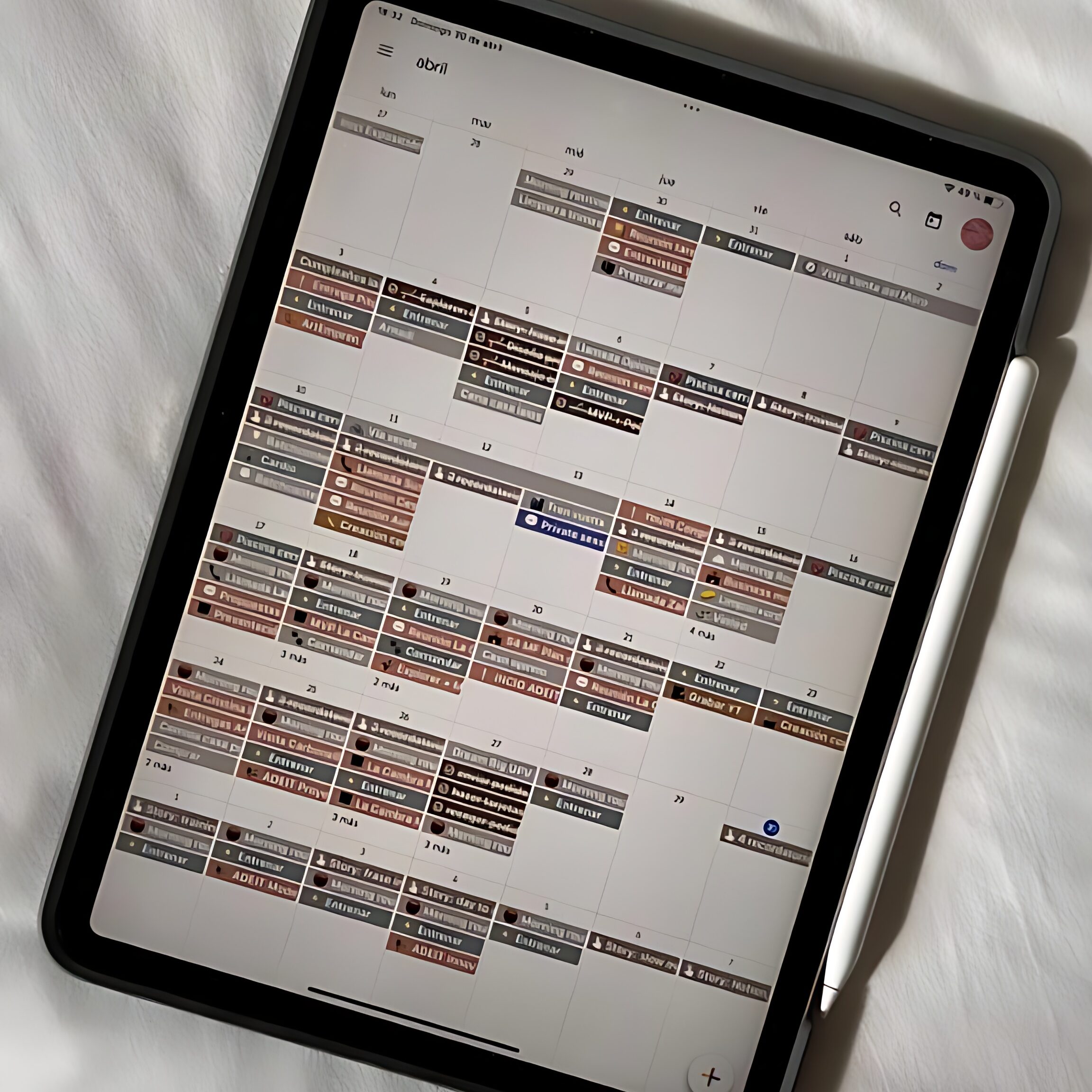
Manual Planning vs. AI-Automated Google Calendar System
Before setting up your system, compare how a manual planning workflow stacks up against an automated AI-driven scheduling setup:
| Planning Stage | Manual Traditional Method | Automated AI + Google Calendar Setup |
| Task Capture | Typing individual tasks into multiple apps or sticky notes. | Voice dump or single text dump parsed automatically by AI. |
| Time Estimation | Guessing duration on the fly, leading to double-booking. | AI estimates durations based on priority and historical rules. |
| Calendar Entry | Manually creating individual Google Calendar events. | Automatic sync places formatted events with zero typing. |
| Handling Overruns | Scrambling to re-arrange events manually when meetings run late. | AI re-prioritizes remaining tasks and shifts open slots. |
| Energy Matching | Scheduling heavy deep work during low-energy brain fog hours. | AI aligns focus blocks with your natural peak energy windows. |
Step-by-Step Guide to Build Your Automated AI Calendar System
Step 1: Audit Your Daily Energy and Set Core Rules
Automation without clear boundaries leads to organized chaos. Before introducing any AI tool, define your personal productivity rules. Ask yourself three foundational questions:
1. When is your peak energy window? (e.g., 9:00 AM to 12:00 PM for deep strategic work)
2. What is your hard daily stop time? (e.g., 6:00 PM evening shutdown)
3. How much buffer time do you need between meetings? (e.g., 15-minute breather zones)
Write these rules down in a simple text document. You will feed these exact guidelines into your AI model as permanent context constraints.
Step 2: Create a Dedicated Secondary Calendar in Google Calendar
To keep your work schedule clean, do not clutter your primary Google Calendar right away. Open Google Calendar, click the ‘+’ icon next to ‘Other calendars,’ and select ‘Create new calendar.’ Name this calendar ‘Focus Tasks’ or ‘Daily Plan.’
Assign a distinct color to this new calendar, such as deep blue or orange. Keeping your automated task blocks on a separate layer allows you to toggle them on or off with a single click without affecting your fixed client calls or company-wide meetings.
Step 3: Master the Master Brain-Dump AI Prompt
The magic of an automated daily task system using ai and google calendar relies on prompt design. You need an AI prompt that converts messy thought dumps into structured calendar-ready data formats like CSV or JSON.
• 💬 Master AI Brain-Dump Prompt Template (Copy & Paste):
-> “Act as an expert executive productivity assistant. I am going to give you a messy brain dump of my tasks for today. Your job is to format them into a structured schedule based on my rules.
My Working Rules:
– Working hours: 9:00 AM to 5:00 PM
– Peak focus energy window: 9:30 AM to 12:00 PM (assign high-priority focus tasks here)
– Lunch break: Always 1:00 PM to 2:00 PM
– Include 15-minute buffer breaks between tasks longer than 60 minutes.
Here is my raw task list:
[Paste your messy tasks, voice notes, or emails here]
Output Format Required:
Provide a clean CSV format table with columns: Task Name, Start Time, End Time, Description, Priority Level (High/Medium/Low). Do not add extra chatter.”
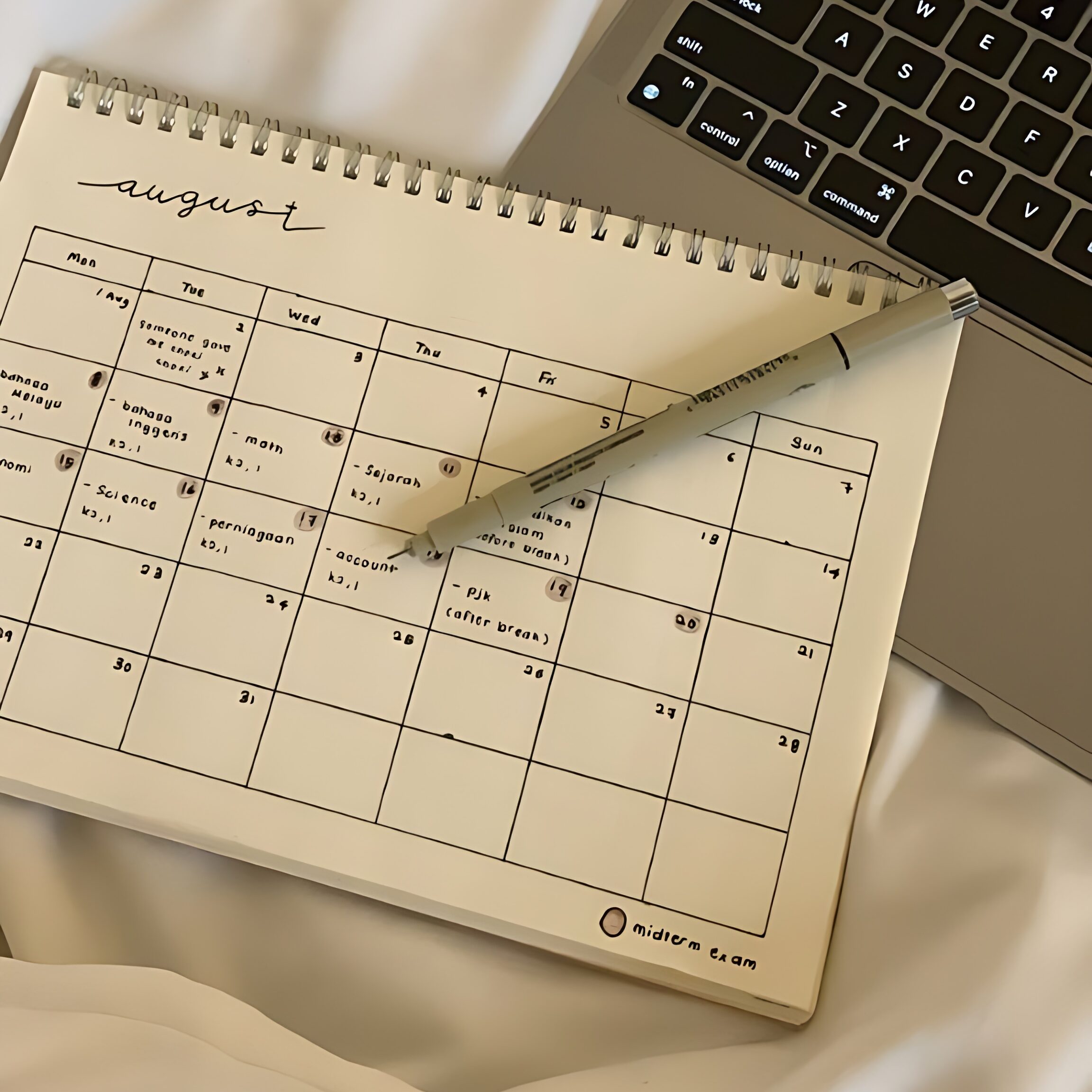
Step 4: Connect AI to Google Calendar Without Coding
Once ChatGPT or Gemini formats your tasks into a structured schedule, you have two simple non-technical methods to push them directly into Google Calendar:
1. Method A: The Free Google Sheets + AppScript Sync (1-Click Method)
Copy the CSV table generated by your AI prompt and paste it into a blank Google Sheet. Using free pre-built Google Sheets add-ons (like ‘Sheet to Calendar’ or simple built-in macros), click ‘Sync to Calendar.’ In under five seconds, all your time blocks will pop up on your Google Calendar.
2. Method B: Zapier or Make.com No-Code Automation (100% Hands-Free)
If you want true automation, use a free Zapier or Make workflow. Set up a trigger: ‘When a new message or note is saved in OpenAI/ChatGPT’ -> Action: ‘Create detailed event in Google Calendar.’ This routes your daily schedule straight into your calendar automatically.
Advanced Non-Techie Hacks for Smooth Calendar Automation
Hack 1: The ‘Emergency Buffer Block’ Strategy
Over-scheduling is the quickest way to ruin a calendar system. Urgent emails arrive, phone calls run long, and unexpected requests pop up. To protect your sanity, instruct your AI prompt to always preserve a 45-minute ‘Flex Buffer’ block at 4:00 PM.
If your day goes smoothly, use this block to clear quick administrative tasks. If unexpected emergencies derail your morning, shift delayed tasks into this flex block without disrupting the rest of your week.
Hack 2: Color-Coding Task Types Automatically
Visual clarity reduces anxiety. Configure your AI prompt to categorize tasks into four distinct buckets with corresponding color names:
• Deep Work (Strategy, Writing, Coding) -> Dark Blue
• Shallow Admin (Emails, Quick Calls, Filing) -> Grey
• Wellness & Rest (Lunch, Walks, Breaks) -> Green
• High Priority Deadlines -> Red
When you look at your Google Calendar at a glance, you will immediately recognize whether your day is balanced or dangerously overloaded with back-to-back meetings.
Hack 3: Evening AI Review Loop
At the end of your workday (around 5:30 PM), spend two minutes running a quick debrief prompt. Paste what you actually accomplished versus what remained untouched on your calendar.
Ask the AI: ‘Based on what I completed today, update my task priorities for tomorrow and draft my morning calendar blocks.’ This creates a self-healing daily productivity cycle that adapts to your natural working speed.
Recommended External & Internal Resources
To deepen your understanding of time management and modern digital automation, explore these guides:
• External Resource: Learn fundamental calendar management principles on
👉 https://support.google.com/calendar/answer/37082 (Official Google Calendar Help & Time-Blocking Features)
• Internal Resource: Discover more ways to streamline your daily workflow:
👉 https://levikahdaila.com/what-are-some-good-chatgpt-prompts-for-daily-life-25-useful-ideas/
Frequently Asked Questions (FAQs)
Q1: Do I need a paid OpenAI or Zapier subscription to build an automated daily task system using ai and google calendar?
No! You can build this entire workflow using 100% free tools. Free AI models like GPT-4o mini or Google Gemini handle the task parsing, Google Calendar is free, and Zapier or Make offer generous free monthly tier plans.
Q2: What happens if my schedule changes unexpectedly during the middle of the day?
Do not stress your calendar is a guide, not a prison. Simply move the affected block manually in Google Calendar, or type a quick follow-up to ChatGPT: ‘I spent 1 extra hour on task A. Adjust my afternoon tasks to fit before 5:00 PM.’
Q3: Is my personal schedule data safe when using AI integration tools?
Yes, as long as you use official integration connectors like Zapier, Make, or standard Google Workspace add-ons. Avoid sharing sensitive personal passwords or confidential company secrets in raw AI prompt text.
Conclusion
Setting up an automated daily task system using ai and google calendar is one of the highest-return productivity habits a non-techie can build today. It removes the mental burden of manual scheduling, protects your deep work focus hours, and ensures you finish every day with clarity rather than overwhelm.
You do not need complex code or dozens of paid productivity applications. Start small today: copy the brain-dump prompt from Step 3, paste your chaotic to-do list, and watch AI transform your day into an organized, stress-free Google Calendar roadmap.