

Imagine beginning your day with a reminder of what matters getting a weekly update on important changes or being told when it is time to finish a task without having to think to ask ChatGPT every single time.
That is what Scheduled Tasks in ChatGPT can help you achieve.
Using ChatGPT only when you start a conversation you can set up certain tasks to run at a specific time or repeat on a schedule. Depending on the task and your account ChatGPT can send reminders create updates and check for important changes.
In this guide, you will learn how ChatGPT Scheduled Tasks work, how to create your first task, how to manage reminders and notifications, and how to use ready-to-copy prompts for everyday activities.
1. What Are Scheduled Tasks in ChatGPT?
Scheduled Tasks let you ask ChatGPT to perform allowed instructions at a time or on a recurring schedule. Of typing the same prompt over and over you can set Scheduled Tasks once and let ChatGPT run it according to the schedule you choose.
I find it useful to set a reminder to review my goals each morning plans my week on Sunday or prepare a recurring update on a topic I follow.
In general, you create a Scheduled Task choose when Scheduled Task should run, confirm the details and manage it later if your plans change. Scheduled Tasks only work within the features and limit available, to your account.
2. How to Schedule Your First Task
Start with a simple reminder so you can get familiar with the process.
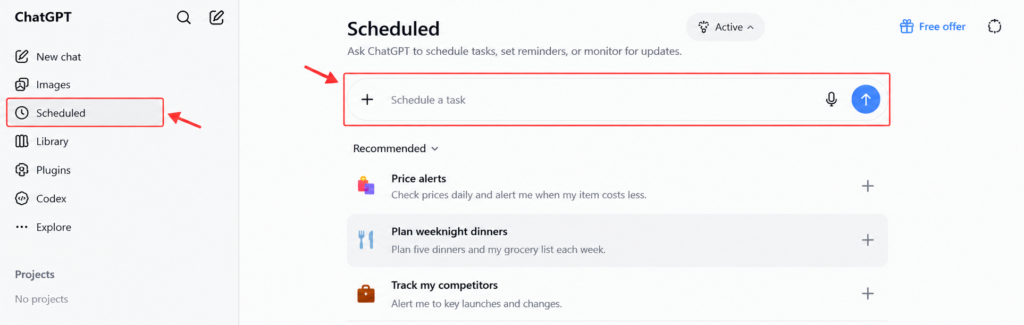
Open ChatGPT and look for the Scheduled section or the task-management option available in your interface. Choose the option to create a task, then enter a clear instruction that says what you want and when you want it to happen.
For example:
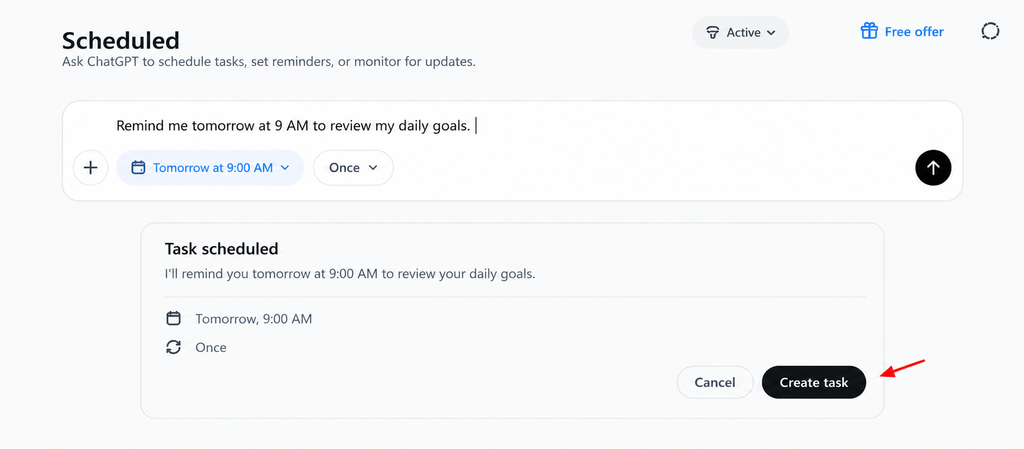
“Remind me tomorrow at 9 AM to review my daily goals.”
Review the proposed date and time, then confirm the task. Afterward, check your scheduled task list to make sure the task appears with the correct details.
3. Set Daily, Weekly, or One-Time Reminders
You can use a recurring reminder for a routine or a one-time reminder for a specific date. The available scheduling options may vary by account.
Daily reminder
Use this for habits or everyday planning.
“Every morning at 8 AM, remind me to review my top three priorities for the day.”
Weekly reminder
Use this for planning or reviewing your progress.
“Every Sunday at 6 PM, remind me to review my week and choose three goals for the week ahead.”
One-time reminder
Use a specific date and time for a deadline or event.
“Remind me on November 5, 2026, at 10 AM to submit my project report.”
Before confirming, double-check the date, time, and recurrence so the task runs when you expect.
4. Edit, Pause, or Delete a Scheduled Task
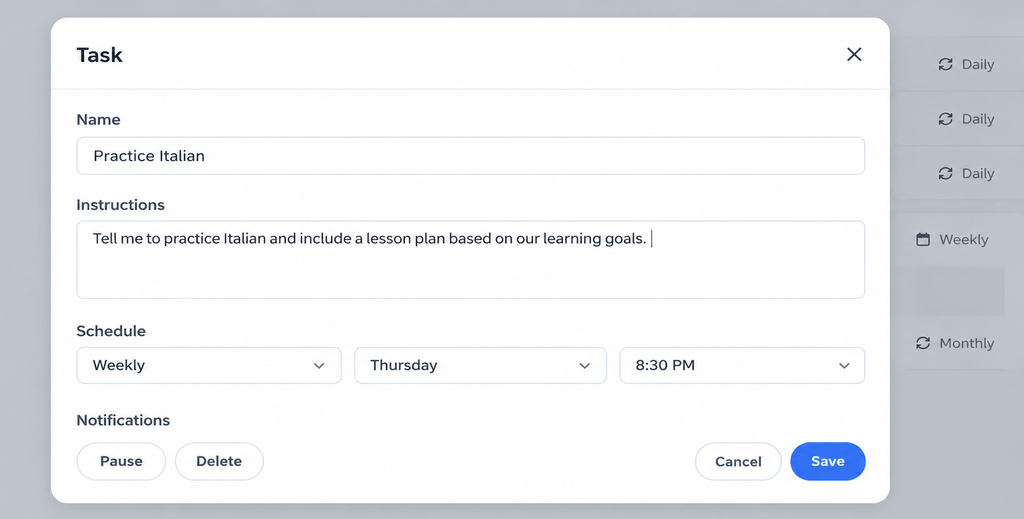
If your plans change, go to Scheduled. Pick the task you want to handle. Use the options to change the instructions or the time or pause the task for now. If you don’t need it anymore you can delete it.
Once you make changes check that the new schedule looks right. If you pause a task, you can start it again later long as that feature is allowed. Keep in mind that deleting a task is not the same, as deleting the conversation linked to it. These two actions can do things so be careful.
5. Manage Tasks and Enable Notifications
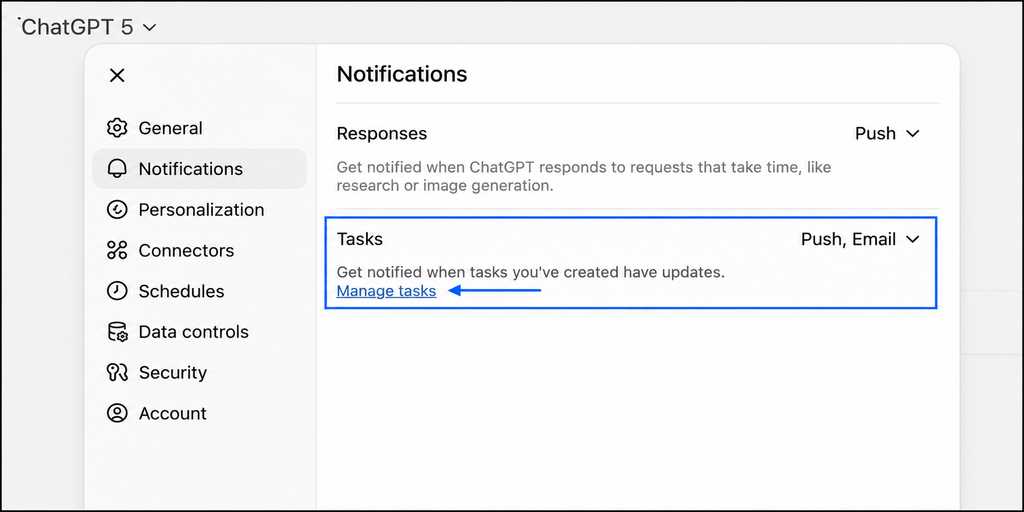
Creating a task and getting a notification are not the thing. To get alerts go to ChatGPT Settings. Find Notifications. Turn on the notification options that’re available to you like push alerts or email alerts.
If you use ChatGPT in a browser you might also need to allow notifications in the browsers site settings. On a phone make sure that ChatGPT has permission to send notifications. Then go back, to your task list. Check that your task is active.
Notification choices can be different depending on the device and the account. Not every task always gives the same kind of alert.
6. Five Useful Examples of Scheduled Tasks
Here are five practical prompts you can adapt to your routine.
Daily productivity
“Every morning at 8 AM, remind me to review my schedule and choose my three most important priorities.”
Weekly goal review
“Every Sunday at 6 PM, remind me to review my progress and set three goals for the coming week.”
Learning reminder
“Every day, remind me to spend 30 minutes learning something new and suggest one small study activity.”
Content planning
“Every Monday at 9 AM, remind me to plan one blog post, one video idea, and three social media posts for the week.”
Weekly topic update
“Every Friday at 4 PM, prepare a short update on important developments in artificial intelligence, with dates and links to reliable sources.”
For the best results, make your prompt clear about what you want, when it should happen, how often it should repeat, and what the result should include. Check that the task supports the action you’re requesting.
Benefits of Using ChatGPT to Schedule Tasks
Using ChatGPT to schedule tasks helps you save time. You can set reminders using everyday words. This means you do not have to create reminders by hand every time. You can schedule things like routines or weekly chores easily.
These tasks also help you stay organized. They support you in building habits. You will remember activities better. With notifications turned on you get alerts about your scheduled tasks. This makes it easier to manage your routine.
Limitations of Using ChatGPT to Schedule Tasks
ChatGPT Scheduled Tasks may need notification permissions, on your browser or device. The features available can change based on your plan or the platform you use. If notifications are turned off you might miss reminders.
Also when you schedule a task it does not mean ChatGPT will do the work for you. For deadlines, meetings or responsibilities it is best to check your tasks again. You should also keep a reminder in your calendar. This way you never miss something.
Frequently Asked Questions
Is ChatGPT-Scheduled Tasks available to everyone?
Scheduled Tasks are available to ChatGPT users who’re eligible and have a supported plan. These include the plan, Go plan Plus plan, Pro plan, Business plan, Enterprise plan and Edu plan. The availability may depend on the settings of your account and workspace. Not all scheduling options are available to all users.
Can I schedule a task to repeat every day?
Yes. Daily recurring tasks are supported. The time options you can choose from depend on the plan you have and your account settings. Make sure to check the schedule that is shown before you confirm.
Can I change a task after creating it?
Yes. Open the task. Use the editing tools that are available to change the instructions or the schedule. After you save the changes make sure to verify them.
Are Scheduled Tasks a replacement for a calendar?
Not completely. Scheduled Tasks are good for reminders and for work that needs to happen. A calendar is better, for managing a list of appointments and events. You can use both tools together.
Conclusion
Learning how to use ChatGPT to schedule tasks can make every day planning easier. From productivity reminders to weekly content plans you can create recurring instructions that help you stay organized and cut down on repeated work.
Start with one reminder make sure it works the way you want and then slowly add more tasks as you find what is helpful, for your routine.
Above all write prompts check your task settings and look at the results instead of just trusting automation completely.
Want to give it a try? Open ChatGPT, set up your scheduled reminder and watch how it works in your daily life.